
How Ad Shield Works Under the Hood
Ad Shield runs a local-only VPN (virtual tunnel tun0) on your phone. It never sends your web traffic
through any remote VPN server owned by us—only DNS lookups (and optionally, specific user-selected traffic) enter the tunnel.
ads.example.com) via virtual DNS 10.111.222.53 / fdad:5ad:5e1d::53.
NXDOMAIN, 0.0.0.0/::, or NODATA. Recorded in local stats & history.


First Launch: Onboarding, Explicit Consent & Permissions
Before Ad Shield touches a single network packet, it explains how local VPN filtering works, shows its full Privacy Policy and Data Safety commitments, and asks for your explicit consent.


Before You Start (Explicit Consent)
Every user reviews six expandable disclosure cards before enabling protection: VPN disclosure, VPN declaration (same declaration submitted to Google Play), No browsing-history monetization, Data Safety, Privacy Policy, and Terms & Conditions.
- Both consent checkboxes must be checked to unlock Agree & Continue.
- Tapping Decline explains that consent is required and lets you exit cleanly.
- Consent is stored locally with a version number and timestamp—and can be reviewed or withdrawn anytime in Settings → Privacy & agreements.


Permissions Screen
VPN connection
RequiredGrants Android VpnService authorization so Android routes DNS lookups into Ad Shield's local tunnel.
Notifications
RecommendedAndroid 13+ runtime permission (POST_NOTIFICATIONS) used for the live protection status notification and revocation alerts.
Unrestricted battery
OptionalRequests exemption from aggressive OEM battery savers so background DNS filtering isn't killed overnight.
Home Dashboard, Protection States & Quick Pause
The Home tab is your command center: toggle protection, inspect live today counters, see active warnings, jump to DNS/blocklists, and monitor the five most recently blocked domains.


Protection Ring & Action Button
Core ControlDisplays real-time engine states: Protection Off, Starting… (loading filters), Protection On, Paused (amber ring showing exact resume time), Waiting for network, DNS provider unreachable, retrying, or Error.
15-Minute Pause (Notification Action)
Quick ActionThe persistent protection notification includes Pause 15 min and Stop buttons. While paused, a live countdown chronometer appears in the notification with Resume and Stop actions, and Ad Shield automatically resumes protection after 15 minutes.
Priority Warning Banners
AutomaticHome automatically surfaces the most urgent diagnostic banner when needed:
- Strict Private DNS detected: Direct button to open Android Private DNS settings and switch to Off or Automatic.
- Downloading filter lists…: Shown on first setup; blocking activates automatically when complete.
- No filter lists loaded: Prompts you to check internet and tap Update.
- Hotspot is on: Reminds you tethered devices aren't filtered by Android VPNs, with a How to link.
Today Counters & Quick Rows
Live DataShows today's Total Requests, Blocked, Allowed, and Block Rate (%), plus tap-through cards for DNS Provider, Last Filter Update, VPN Status (with active protocol & host), and Recently blocked (with See all).
Blocked Domains History
Available via Home → See all, Home ⋮ → Blocked Domains, or Statistics → Top Blocked Domains. Lists up to the 500 most recent blocked lookups stored locally on your phone (allowed domains are never written to this history).
Search & Category Chips
FilterFilter instantly by text or category chip: All, Ads, Trackers, Malware, or Custom (from My Blocklist). Each row displays the domain, category, timestamp, and attributed app name (Android 10+).
Row Tap Actions & Clear History
InstantTap any domain to Add to allowlist (takes effect immediately without restarting the VPN) or Copy the domain name. Tap the top-right trash icon to Clear history while keeping numeric request counters intact.

Statistics, Charts & Filter Performance
All statistics are computed locally in Ad Shield's Room database (batched every 3 seconds for low battery impact) and never leave your device.

Day / Week / Month Switcher
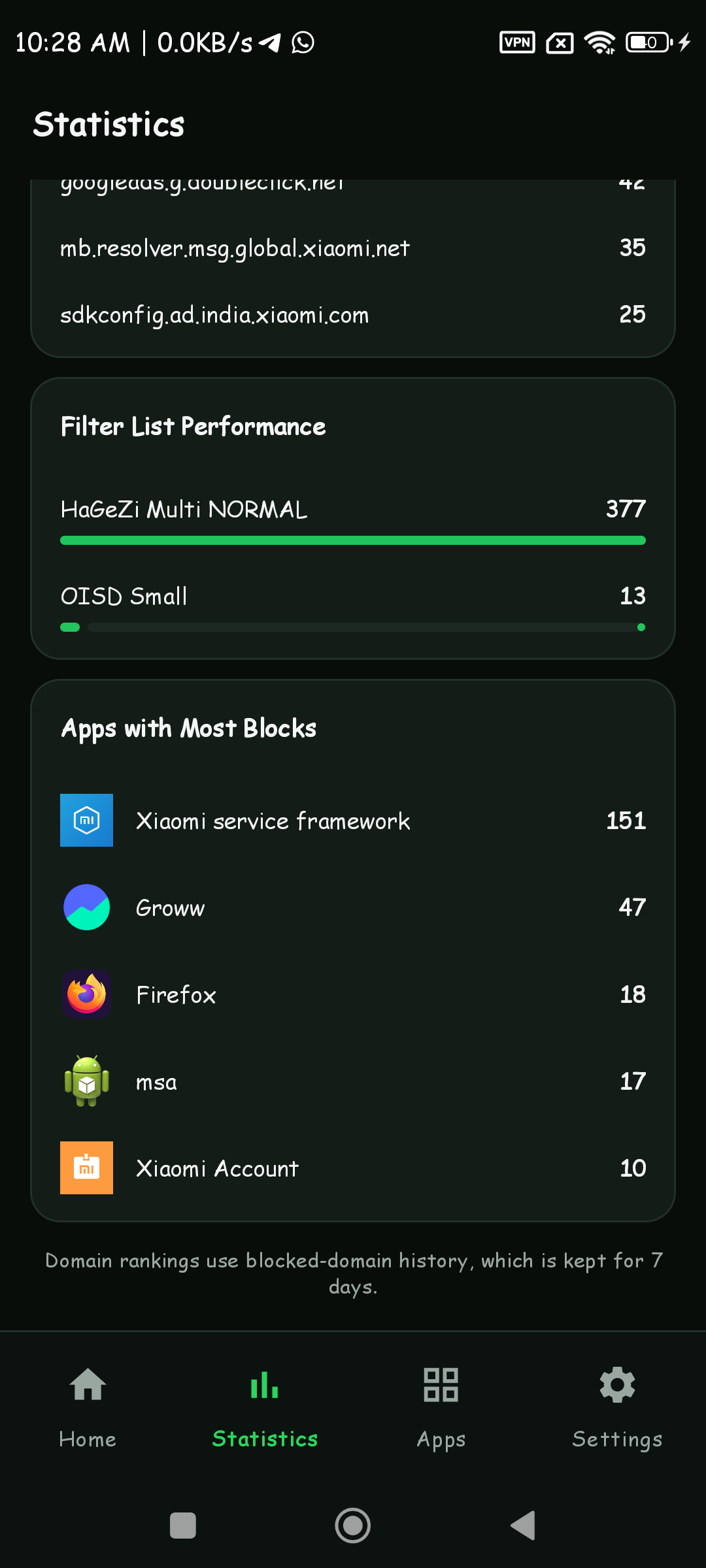
24h · 7d · 30dDay plots 24 hourly bars (00–23); Week plots 7 daily bars; Month plots 30 daily bars. Tapping any bar updates the detail line with exact numbers (e.g., 10:00: 85 blocked of 198).
Top Blocked Domains & List Performance
RankingsRanks the top 5 most frequently blocked domains and top 8 filter lists (e.g., HaGeZi Multi NORMAL vs. OISD Small) with visual progress bars for the selected period.
Apps with Most Blocks
Android 10+Uses Android's ConnectivityManager.getConnectionOwnerUid() to attribute blocked DNS requests to installed apps and shows the top 5 apps for the selected timeframe.
Live Request Tracker
Open via the radar/power icon in the Home toolbar, the card in Statistics, or Settings → Request tracker → Open. Streams the latest 2,000 events in real time—stored in memory only and cleared automatically when protection stops or the tracker is disabled.
Filters, Search & Stream Controls
In-Memory OnlyFilter chips: All, Blocked, Allowed, and Connections (direct IP connections). Search matches domain names, IP addresses, or app names/packages. Top-right controls let you Pause/Resume scrolling or Clear log.
Badges & Status Indicators
Rich TelemetryBLOCKED: Blocked locally; shows which list or custom rule blocked it.IP BLOCKED: Outgoing connection refused by your Blocked IPs rule.FAILED: Upstream DNS provider did not respond.FILTERED: Web request cleaned by HTTPS filtering inside a browser.DIRECT: Direct IP connection of a tracked app (port + live ↑/↓ bytes + active/closed).- Latency pill:
cached(0 ms local hit) or round-trip time (e.g.,86 ms), query type (IPv4,IPv6,PTR), and resolved IPs.
One-Tap Row Actions Menu
Power ToolTapping any row opens contextual actions tailored to that row's type:
- Allowed DNS row: Block domain, Block whole site (root domain + subdomains), Block IP (up to 4 resolved IPs, with shared-server warning), Copy domain, Copy IP, Show only <App>.
- Blocked DNS row: Allow domain, Allow whole site, Copy domain, Show only <App>.
- HTTPS Filtered row: Never filter <site>, Copy address, Manage HTTPS filtering.

Apps — Per-App VPN Exclusions

Lists every installed user and system app with its package name, today's blocked count (Android 10+), and an enable/exclude switch. Search by app name or package ID, and filter using All, Filtered, Excluded, or System chips.
How App Exclusion Works
Full BypassSwitching an app OFF adds it to Android's VpnService.Builder.addDisallowedApplication() list. That app's traffic and DNS bypass Ad Shield completely—with no filtering and no statistics. Rapid toggles are automatically batched (1.2 s) into a single seamless VPN tunnel reload.
Tap Row to Inspect App Requests
ShortcutTapping anywhere on an app's row (outside the toggle) opens Live Requests filtered exclusively to that app.
Every Settings Option Explained in Detail
All configuration options are organized into six clean sections inside the Settings tab. Below is every single toggle, selector, and sub-screen with its default state and practical use cases.


7.1 Protection
Auto-start protection
Default: OffWhen enabled, Ad Shield automatically restarts VPN protection after a phone reboot—only if protection was active before the phone turned off. Off by default on fresh installs so Ad Shield never starts unasked.
Statistics in notification
Default: OnDisplays Today: X blocked of Y requests inside the persistent foreground VPN notification. Turn Off to show only DNS filtering is active.
Always-on VPN
Android SettingsOpens Android's system VPN screen where you can toggle Always-on VPN for Ad Shield so the OS automatically reconnects it if killed.

7.2 DNS Provider (Encrypted Resolvers & Connection Test)

Allowed DNS queries (not blocked by your local filter lists) are sent over an encrypted tunnel—DNS-over-HTTPS (DoH) or DNS-over-TLS (DoT)—with strict TLS certificate verification. Your ISP cannot see or tamper with your DNS lookups.
| Provider | Protocol & Endpoint | Best Use Case |
|---|---|---|
| Cloudflare (DoH) Default | https://cloudflare-dns.com/dns-query | Lowest latency global anycast resolver with strong privacy focus. |
| Google (DoH) | https://dns.google/dns-query | High reliability when another resolver has routing issues on your ISP. |
| Quad9 (DoH) | https://dns.quad9.net/dns-query | Extra upstream threat intelligence that blocks malware/phishing servers. |
| AdGuard DNS (DoH) | https://dns.adguard-dns.com/dns-query | Adds server-side ad/tracker blocking on top of your local lists. |
| Mullvad (DoH) | https://adblock.dns.mullvad.net/dns-query | Strict no-logging privacy resolver with built-in ad/tracker filtering. |
| Cloudflare (DoT) | tls://one.one.one.one:853 | Lightweight DNS-over-TLS on port 853; great when HTTPS/443 DoH is throttled. |
| Custom (DoH/DoT) | https://... or tls://host[:port] | Use your own NextDNS profile, Control D endpoint, or self-hosted Pi-hole/AdGuard Home. |
example.com and verify TLS + round-trip latency (e.g., ✓ Cloudflare (DoH) answered in 42 ms) before leaving the screen.
7.3 Blocklists & All Rules Viewer

+added / -removed diffs.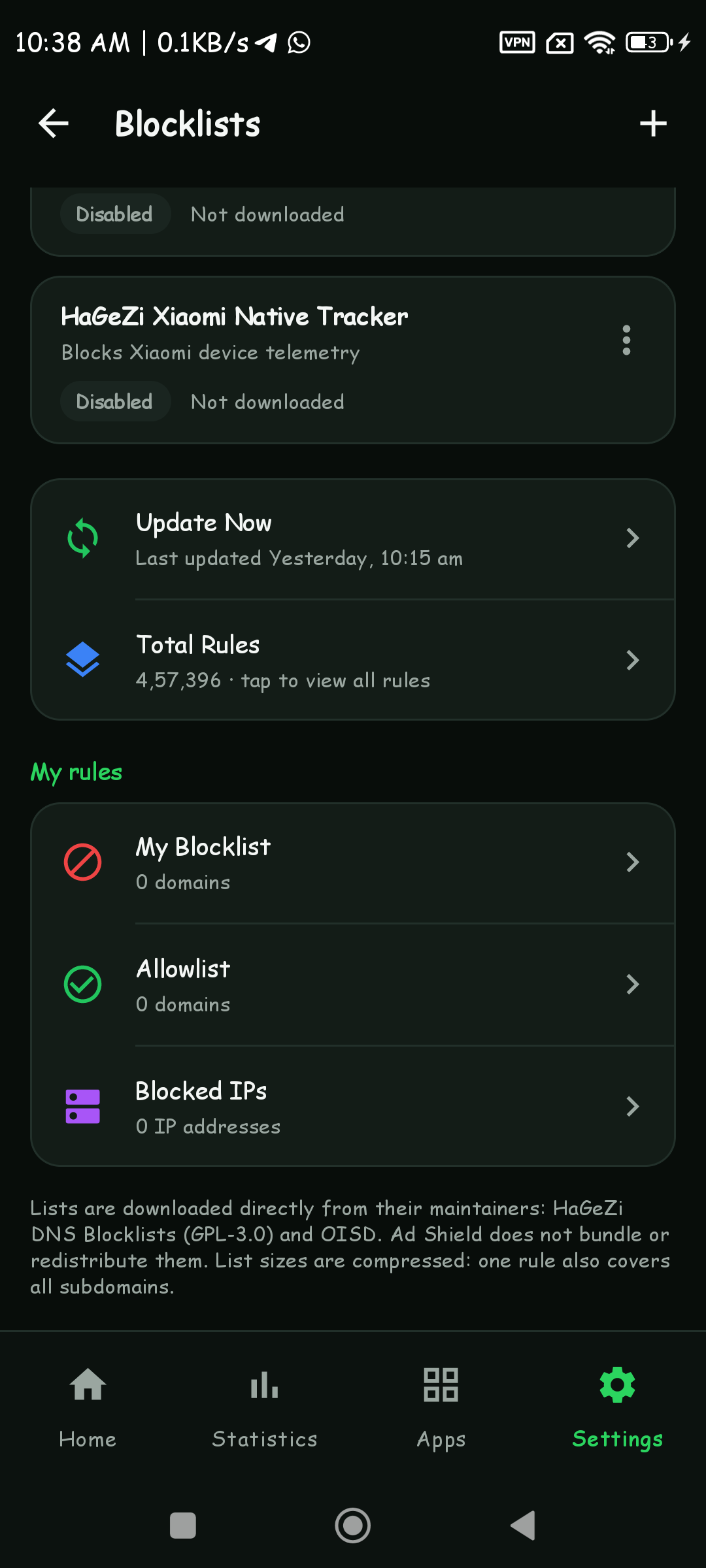
| Filter List | Default | Category | What It Blocks & Use Case |
|---|---|---|---|
| HaGeZi Multi NORMAL | Enabled | Ads | Balanced all-rounder for ads, tracking, metrics, and badware across apps and browsers. |
| OISD Small | Enabled | Ads | Curated for minimal false positives; pairs cleanly with HaGeZi Normal. |
| HaGeZi Threat Intelligence (Mini) | Enabled | Malware | Stops known malware distribution, phishing links, cryptojackers, and scam domains. |
| HaGeZi Multi PRO | Disabled | Ads | Stricter ad/tracker coverage; enabled automatically by Stronger in-app ad blocking. |
| HaGeZi Multi LIGHT | Disabled | Ads | Minimal list for maximum app compatibility (e.g., if you disable Normal on an older device). |
| OISD Big | Disabled | Ads | Comprehensive OISD list; higher RAM usage, paired with HaGeZi PRO in Stronger mode. |
| HaGeZi Xiaomi Native Tracker | Disabled | Tracking | Specifically targets Xiaomi / MIUI / HyperOS device telemetry domains. Ideal for Redmi/POCO/Xiaomi phones! |
Custom Lists (+ button) | User Added | Custom | Add any https:// plain-domain, hosts, or wildcard list URL. Long/menu options: Enable/Disable, Update Now, Copy URL, Remove. |
Total Rules → All Rules Viewer
Optional Text Cache
Normally Ad Shield compiles lists into a compact 64-bit hash set (~8 bytes per rule) and discards raw text to save storage.
Tapping Total Rules offers to keep compressed readable text copies in private storage (files/filters, ~3 MB for 400K+ rules)
so you can browse and search every single domain in every enabled list (or your own rules). You can delete those text copies anytime from the All Rules toolbar without affecting blocking.
ads.vendor.com) is already covered by HaGeZi or OISD before adding it manually to My Blocklist.7.4 Allowlist, My Blocklist & Blocked IPs


Allowlist
Highest PrecedenceDomains here are never blocked, even if matched by HaGeZi/OISD or My Blocklist. Supports Includes subdomains (default) or Only this exact name, plus quick Edit, Disable/Enable, and Delete with Undo.
click.example.com) as Exact domain only while keeping ads on other subdomains blocked.My Blocklist
Custom RulesAdd any domain you want blocked across your device, with choice of subdomain matching or exact-only matching. Rules take effect immediately without restarting protection.
Blocked IPs
AdvancedRoutes specific public /32 IPv4 or /128 IPv6 addresses into the tunnel and refuses connections immediately (TCP RST / ICMP prohibited). Add via + Add or directly from a Live Requests row.
7.5 HTTPS Filtering (Remove Ads Inside Web Pages)
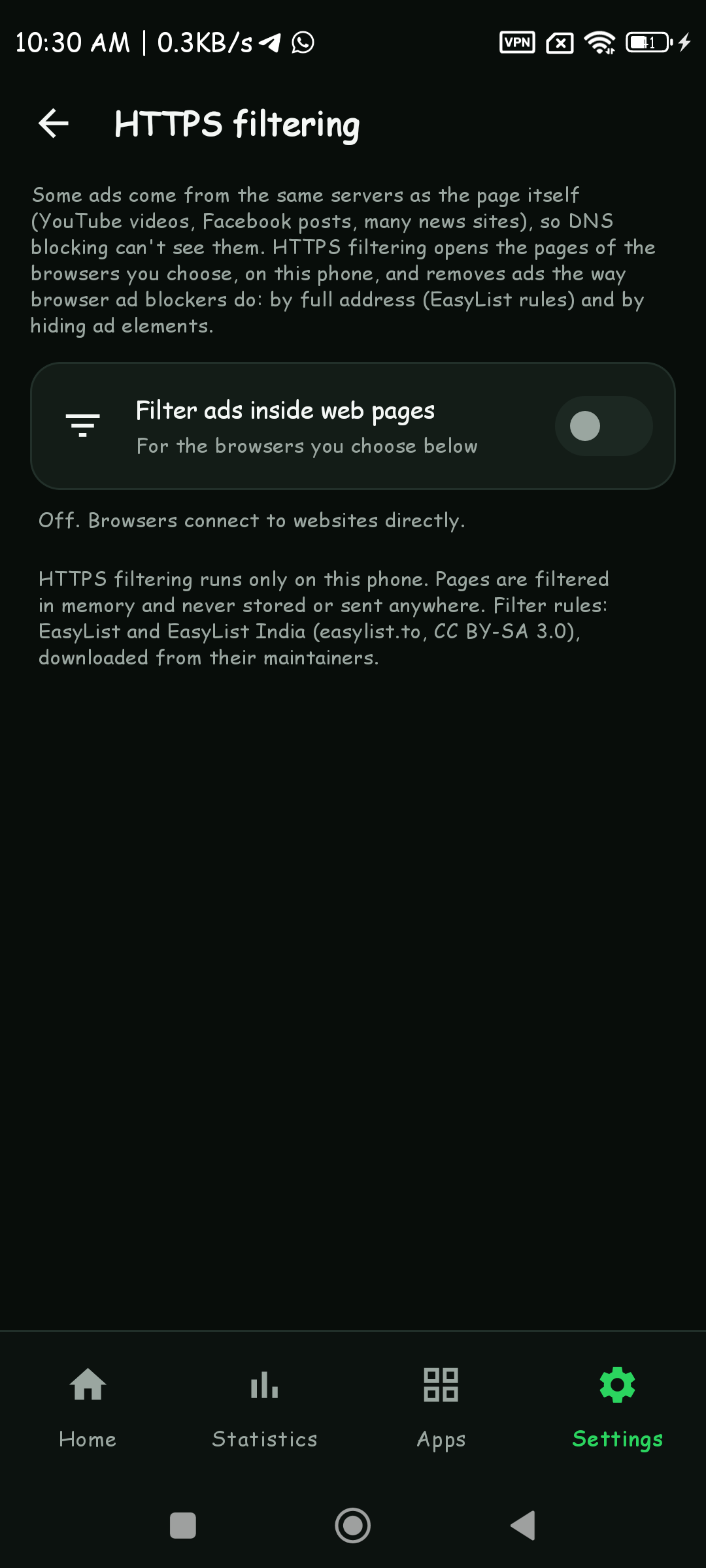
DNS blocking cannot stop ads served from the same domain as the page itself (such as YouTube video ads, Facebook sponsored posts, or native ad cards on news/shopping sites). HTTPS filtering (optional, Off by default, requires Android 10+) solves this inside the browsers you select—on your device only, in memory, never stored or sent anywhere.
1. Master Switch & Consent
Default: OffTurning on Filter ads inside web pages shows a clear explanation of on-device TLS inspection, generates a unique on-device EC P-256 certificate (private key secured by Android Keystore AES-GCM), and downloads EasyList + EasyList India.
2. Save & Install Certificate (3 Steps)
Screen Lock NeededSave AdShield-HTTPS-Filter.crt to Downloads, then install it via Android Settings → Security / Encryption & credentials → Install a certificate → CA certificate. Ad Shield automatically detects when the CA is installed (Needed → Installed) and starts filtering immediately.
3. Extra Protection Toggles
Default: On (when active)- Hide sponsored posts & products: Cleans sponsored cards on Google Search, Instagram, X, Reddit, LinkedIn, Amazon, and Flipkart.
- Hide "recommended for you" widgets: Removes paid story widgets (Taboola, Outbrain, etc.) on news websites.
4. Per-Browser Selection & Firefox Tip
Per-BrowserChoose exactly which installed browsers are filtered. If a browser refuses user certificates, Ad Shield detects it automatically and pauses filtering for that browser so websites never break. For Firefox, enable: Settings → About Firefox → tap logo 5 times → Secret settings → Use third party CA certificates.
5. Never Filtered (Safety Exclusions)
Always DirectBuilt-in exclusions never pass through HTTPS filtering: banking & finance (.bank.in, SBI, HDFC, ICICI, Axis, Kotak, etc.), payments/UPI (Paytm, PhonePe, NPCI, BHIM, Razorpay, PayPal, Stripe), government portals (.gov.in, .gov), sign-in/password managers (Google/Microsoft/Apple login, 1Password, Bitwarden), and video CDNs (googlevideo.com, fbcdn.net). You can also add custom excluded sites anytime.
6. Remove Certificate
Clean UninstallTurns off HTTPS filtering and permanently deletes the intermediate private key from Ad Shield, with instructions to remove the CA from Android's Trusted credentials → User list.
7.6 Blocking Mode, Stronger Blocking, CNAME, Cache, IPv6 & Fallback

Blocking response
Default: NXDOMAIN- NXDOMAIN (domain does not exist): Fastest standards-compliant rejection.
- Null IP (
0.0.0.0/::): Returns a non-routable IP address. - Empty answer (NODATA): Returns NOERROR with zero records.
Stronger in-app ad blocking
Default: OffSwaps balanced lists for stricter supersets (HaGeZi Multi PRO + OISD Big). Prompts with a trade-off notice first.
Block CNAME-cloaked trackers
Default: OnInspects CNAME alias chains inside upstream DNS answers. If stats.site.com aliases to a blocked tracker domain, Ad Shield blocks the response.
DNS cache
Default: OnTTL-aware in-memory LRU cache that serves repeated allowed lookups locally in microseconds.
IPv6 DNS
Default: OnConfigures a virtual IPv6 DNS server (fdad:5ad:5e1d::53/128) inside the local VPN tunnel alongside IPv4.
Unencrypted fallback
Default: OffStrictly blocks plain port-53 DNS fallback by default. When turned On, falls back to the network's regular DNS if your encrypted DoH/DoT provider cannot be reached.
7.7 Automatic Updates & Appearance
Automatic list updates
Default: Every daySchedules WorkManager background updates: Off, Every 12 hours, Every day, or Every 3 days.
Update on Wi-Fi only
Default: OffRestricts scheduled blocklist updates to unmetered/Wi-Fi connections so mobile data isn't consumed.
Dark mode & Theme
Default: DarkQuick Dark mode switch plus full Theme picker: System default, Light, or Dark.
7.8 Request Tracker & Direct Connections
Request tracker
Default: OnControls whether the in-memory 2,000-entry Live Requests buffer records events, with an Open button right on the row. Turning the switch Off clears the buffer immediately.
Direct connections
Default: OffSome apps (like Telegram) connect straight to hardcoded IP addresses without doing a DNS lookup, so DNS-only logs can't see them. When enabled for specific apps you add:
- Telegram / Telegram X / forks: Official CIDR server ranges are automatically fetched & refreshed from
core.telegram.org/resources/cidr.txt. - Other apps: Enter IPv4 (
/8to/32) or IPv6 (/16to/128) CIDR ranges manually. - Only those server ranges pass through Ad Shield's user-space relay; every other app stays DNS-only. Shows live port and ↑/↓ byte counters in Live Requests → Connections.

7.9 Privacy & Data + General Section
Blocked-domain history
Default: OnStores a local list of blocked domains so you can inspect and allowlist them later. Allowed domains are never stored. Turning Off immediately prunes stored history.
Keep history for
Default: 7 daysRetention window for blocked-domain history: 1 day, 7 days, or 30 days. Automatically pruned by DatabaseCleanupWorker.
Per-app statistics
Default: On (Android 10+)Counts blocked/allowed requests per app when Android identifies the socket owner UID.
Clear statistics & Reset settings
ConfirmationsClear statistics wipes all counters and blocked-domain history. Reset settings restores all preferences to defaults while preserving your filter lists, allowlist, consent state, and statistics.
Privacy & agreements
Consent ReviewShows the exact date you consented, lets you re-read the VPN disclosure, VPN declaration, Data Safety, Privacy Policy, and Terms & Conditions, or tap Withdraw consent to stop protection and clear consent.
Permissions
Status CheckDisplays live Granted / Not granted status for VPN connection, Notifications, and Unrestricted battery with one-tap grant buttons.
Battery usage
System ShortcutOpens Android's Battery Optimization settings for Ad Shield. Ad Shield only processes DNS lookups (very low battery use), so unrestricted mode prevents OEM task killers from stopping it.
Notification settings
2 ChannelsOpens Android's notification channel settings for Ad Shield: Protection status (ongoing low-importance notification) and Alerts (notifies if another VPN revokes protection).


Real-World Use-Case & Troubleshooting Playbook
| Scenario / Problem | Exact Steps in Ad Shield |
|---|---|
| A shopping link, newsletter redirect, or app feature stopped loading | Go to Home → Recently blocked → See all (or Live Requests), find the blocked domain, tap it, and select Add to allowlist. Takes effect immediately. |
| One specific banking or VPN-sensitive app won't connect | Open the Apps tab, search for the app, and toggle it OFF. Its traffic and DNS bypass Ad Shield completely. |
| YouTube video ads or sponsored posts still appear in your mobile browser | Enable Settings → HTTPS filtering, save & install AdShield-HTTPS-Filter.crt, turn on your browser (for Firefox, enable third-party CAs in Secret settings), and reload pages. |
| Home shows "Android Private DNS is set to a specific provider" | Tap Settings on the Home banner and change Android's Private DNS to Off or Automatic so DNS queries flow through Ad Shield. |
| Devices connected to your phone's Wi-Fi hotspot still see ads | Android never routes tethered traffic through VPN apps. Open Settings → Hotspot & other devices and set AdGuard DNS (dns.adguard-dns.com on Android, or 94.140.14.14 / 94.140.15.15 on Windows/Mac/iPhone), or install Ad Shield on those Android devices. |
| Hotel / airport / office Wi-Fi fails to resolve websites while protection is on | Temporarily turn on Settings → Unencrypted fallback (or pause protection for 15 minutes from the notification) until captive-portal sign-in completes. |
| Xiaomi / MIUI / POCO background telemetry or protection killed overnight | 1) Enable HaGeZi Xiaomi Native Tracker in Settings → Blocklists. 2) Set Settings → Permissions → Unrestricted battery and Always-on VPN. |
| Game "Watch an ad for a reward" button stops working | If you enabled Stronger in-app ad blocking, turn it off or tap Pause 15 min in the Ad Shield notification while claiming your reward. |